
Form element - input type="text" and CSS
Form element <input type="text">, sometimes for short called textBox, is the most frequently used form element. TextBox is used for input of short text (single line) for example name, title, number, date and so on. Mastery of textBox by means of CSS is not trivial, but in comparison with other form elements is maybe the simplest.
Following live form example is completed by applied HTML a CSS code. View of the live form depends on actual used browser. Farther are screenshots of that form in other browsers. By this way you can compare form look in your actual browser and look in others browsers. This is not entire tutorial of textBox element styling, but rather example of how to make that element usable in compact forms.
|
| input {font: normal 13px Arial, SansSerif;} <input type="text" size="7" value="textBox"> | |
|
| <input type="text" size="7" value="textBox" disabled> | |
| .tx1, .tx2, .tx3, .tx4 {width: 88px; height: 18px; margin:0; padding: 0;} | ||
|
| .tx1 {color: #f00;} | |
|
| .tx2 {padding: 0 1px 0 0; float: left; color: #00c; border: 1px solid #00c;} | |
|
| .tx3 {padding: 0 1px 0 0; float: left; background: #ffa;} | |
|
| .tx4 {padding: 0 1px 0 0; float: left; background: #ffa; border: 0;} | |
On the left is sreenshot of textbox in Windows7, other examples are from Windows XP. The appearance of a form depends on a Windows motive. It is possible to force IE always display classic style in any motive (IE menu: Tools / Internet Options / Edit / Enable display styles ...). Here are pictures from older browsers.
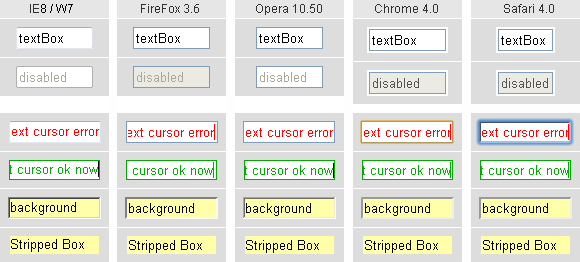
The default look of element textBox is in the first row of screenshots. The width is set up by help of attribute size="7", but outside dimmensions differ in browsers. Attribute size is not useful for cross browser pixel precision solution. Font used in form elements is not inherited, therefore have to be declared separately. In the second row of screenshots is element textBox in disabled status.
Chrome and Safari have some "empty" space arround element, which is due to default setting margin. If you explicitly set the margin: 0; that space disappears, but not in brovsers IE6 and IE7, there is a need to use property float: left;.
Next rows of screenshots displays the elements modified by CSS. "Red" elements highlight the error type of disappearing text cursor at the right edge of the element. Text cursor goes away in IE and Opera when text-align is set to the right, or when text is long across the entire width of the element. Correct text cursor is visible in Firefox, Safari and Chrome. This is caused by setting padding: 0; sometimes recommended in so-called CSS reset. Solution is setting padding: 0 1px 0 0; which creates sufficient space for text cursor. Therefore be carefull when using CSS reset for form elements.
Chrome and Safari screenshots display textBox which has focus. You can see brown or blue border around the active element. Only one form element can be active at one time, and that is element where text from the keyboard is routed. How to obtain a similar effect in other modern browsers is described in article form summary.
"Green" elements demonstrate solution for always visible text cursor and uniform size of textboxes across browsers. Close view on text cursor position detects small differences. Text inside of Firefox is shifted to the left (letter "t" is not visible). In Chrome and Safari text cursor is moved 1 pixel left (inside of letter "w"). In IE and Opera is text cursor near to the border.
The next row of screenshots show the effect of CSS property background. Setting the background property causes the appearance of the element is switched to classic look, specific look set by Windows motive is suppressed then. Such a change of look is applied for other form elements too.
The last row displays "naked" textbox element, identical in all tested browsers. Dimensions are the same and text cursor remains visible regardless of text alignment. Such an element can be inserted into an envelope (container), with style according to needs.
Live example of element <input type="text" ... > together with other form elements you can find in article form summary, calculation of dimensions you can find in article form box model.
Atributes of element <input type="text">
<input type="text" name="..." value="..." size="10" maxlength="20">
type="text" is mandatory atribute for this type of form element.
name="..." is mandatory attribute and have to be implemented as unique identifier. The same identifier is usually used for optional attribute id="...". Missing attribute name cause that content of that element is not submitted to server.
value="..." this attribute defines initial content of textbox, for example data from database. All input data are treated as string, including numbers. If length of text in value is longer than specified attribute maxlength, FireFox and Safari display only granted number of characters, IE and Opera display all characters, but text can be deleted only, until limit of characters is reached.
size="10" Attribute size is a way how to set the width of this form element. According to screenshots this is not cross browser solution how to unify the width of element. Calculation of the width from size is based on so-called average charwidth, but this term is not exactly defined. It is preferable to use corresponding CSS properties.
maxlength="20" Optional attribute maxlength limits the number of characters that can be inserted into the textbox. When maximum length of text is reached, it is already impossible to insert another character, but it is not indicated by any way.
Another optional attribute is disabled="disabled". Input text is grayed and content of such an element is not submitted to server.
Optional attribute readonly="readonly" prevents editing element content, but content is submitted to the server. Status readonly is not indicated (except Safari, where it looks like disabled). Chrome, Safari and Opera do not allow to place text cursor into readonly textbox. IE and Firefox allow text cursor to be placed into readonly textbox and to move text cursor by cursor keys (that is confusing). When you press backspace key in IE, browser loads previous page. Expected behavior of readonly textbox meets only Safari.
This page is switched to standard mode, to make IE work according to W3C box model. If you experiment with form elements styling, remember to use correct doctype in HTML or XHTML prolog.
updated 26.03.2010